Forensics - Registry Furensics
Day 16
Learn what the Windows Registry is and how to investigate it.
Investigate the Gifts Delivery Malfunctioning
Overview
Room URL: https://tryhackme.com/room/registry-forensics-aoc2025-h6k9j2l5p8
Difficulty: Medium
Category: Forensics
Date Completed: 12/16/2025
Objectives
- Understand what the Windows Registry is and what it contains.
- Dive deep into Registry Hives and Root Keys.
- Analyze Registry Hives through the built-in Registry Editor tool.
- Learn Registry Forensics and investigate through the Registry Explorer tool.
Table of Contents
Introduction
Walk Through
Lessons Learned
Resources
Introduction
Just as your brain stores everything you need to function—your behaviors, habits, and memories—the Windows operating system relies on its own "brain" to maintain its configurations and operations. This digital brain is known as the Windows Registry, a sophisticated hierarchical database that stores critical system information, user preferences, and application settings. Unlike a human brain confined to one location, the Windows Registry is distributed across multiple files called Hives, each specializing in different aspects of system configuration. Understanding the Registry is essential for cybersecurity professionals, particularly in forensic investigations where the Registry often contains the smoking gun evidence of compromise, unauthorized access, and malicious activity. In this challenge, you'll investigate the compromised dispatch-srv01 system using Registry forensics to uncover the artifacts of the TBFC intrusion that began on October 21st, 2025.
Registry Data
| Hive Name | Contains | Location |
|---|---|---|
| SYSTEM | - Services - Mounted Devices - Boot Configuration - Drivers - Hardware |
C:\Windows\System32\config\SYSTEM |
| SECURITY | - Local Security Policies - Audit Policy Settings |
C:\Windows\System32\config\SECURITY |
| SOFTWARE | - Installed Programs - OS Version and other info - Autostarts - Program Settings |
C:\Windows\System32\config\SOFTWARE |
| SAM | - Usernames and their Metadata - Password Hashes - Group Memberships - Account Statuses |
C:\Windows\System32\config\SAM |
| NTUSER.DAT | - Recent Files - User Preferences - User-specific Autostarts |
C:\Users\username\NTUSER.DAT |
| USRCLASS.DAT | - Shellbags - Jump Lists |
C:\Users\username\AppData\Local\Microsoft\Windows\USRCLASS.DAT |
Registry Keys
| Registry Key | Importance |
|---|---|
HKCU\Software\Microsoft\Windows\CurrentVersion\Explorer\UserAssist |
It stores information on recently accessed applications launched via the GUI. |
HKCU\Software\Microsoft\Windows\CurrentVersion\Explorer\TypedPaths |
It stores all the paths and locations typed by the user inside the Explorer address bar. |
HKLM\Software\Microsoft\Windows\CurrentVersion\App Paths |
It stores the path of the applications. |
HKCU\Software\Microsoft\Windows\CurrentVersion\Explorer\WordWheelQuery |
It stores all the search terms typed by the user in the Explorer search bar. |
HKLM\Software\Microsoft\Windows\CurrentVersion\Run |
It stores information on the programs that are set to automatically start (startup programs) when the users logs in. |
HKCU\Software\Microsoft\Windows\CurrentVersion\Explorer\RecentDocs |
It stores information on the files that the user has recently accessed. |
HKLM\SYSTEM\CurrentControlSet\Control\ComputerName\ComputerName |
It stores the computer's name (hostname). |
HKLM\SOFTWARE\Microsoft\Windows\CurrentVersion\Uninstall |
It stores information on the installed programs. |
Challenge Specific Locations
| Hive on Disk | Where You See It in Registry Editor |
|---|---|
| SYSTEM | HKEY_LOCAL_MACHINE\SYSTEM |
| SECURITY | HKEY_LOCAL_MACHINE\SECURITY |
| SOFTWARE | HKEY_LOCAL_MACHINE\SOFTWARE |
| SAM | HKEY_LOCAL_MACHINE\SAM |
| NTUSER.DAT | HKEY_USERS\<SID> and HKEY_CURRENT_USER |
| USRCLASS.DAT | HKEY_USERS\<SID>\Software\Classes |
Walk Through
- Start the target machine
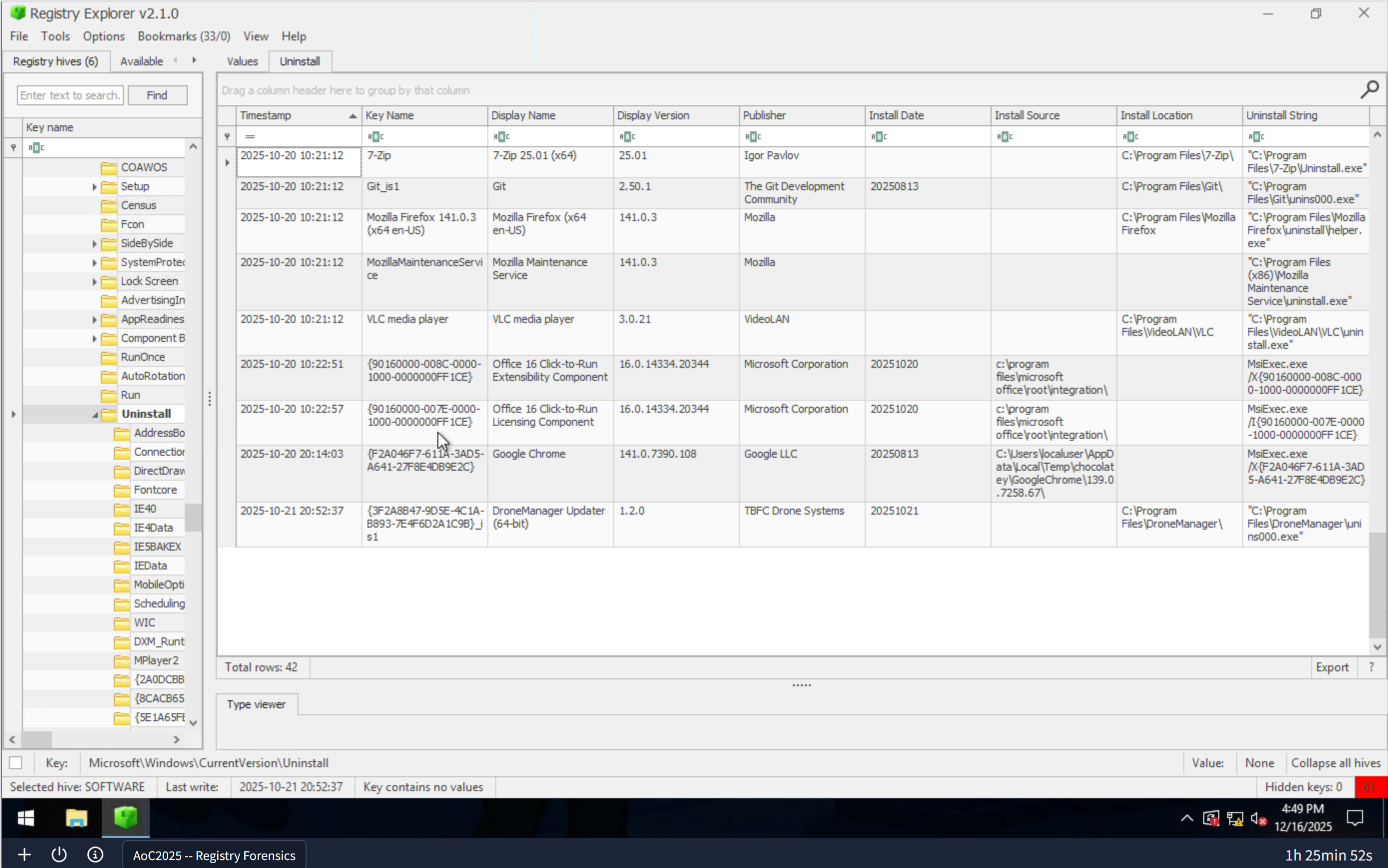
- What application was installed on the
dispatch-srv01before the abnormal activity started?- The installed programs are listed in
HKLM\Software\Microsoft\Windows\CurrentVersion\Uninstall - I then sorted the table by timestamp . There was one program installed or modified on
10/21/2025 
- The installed programs are listed in
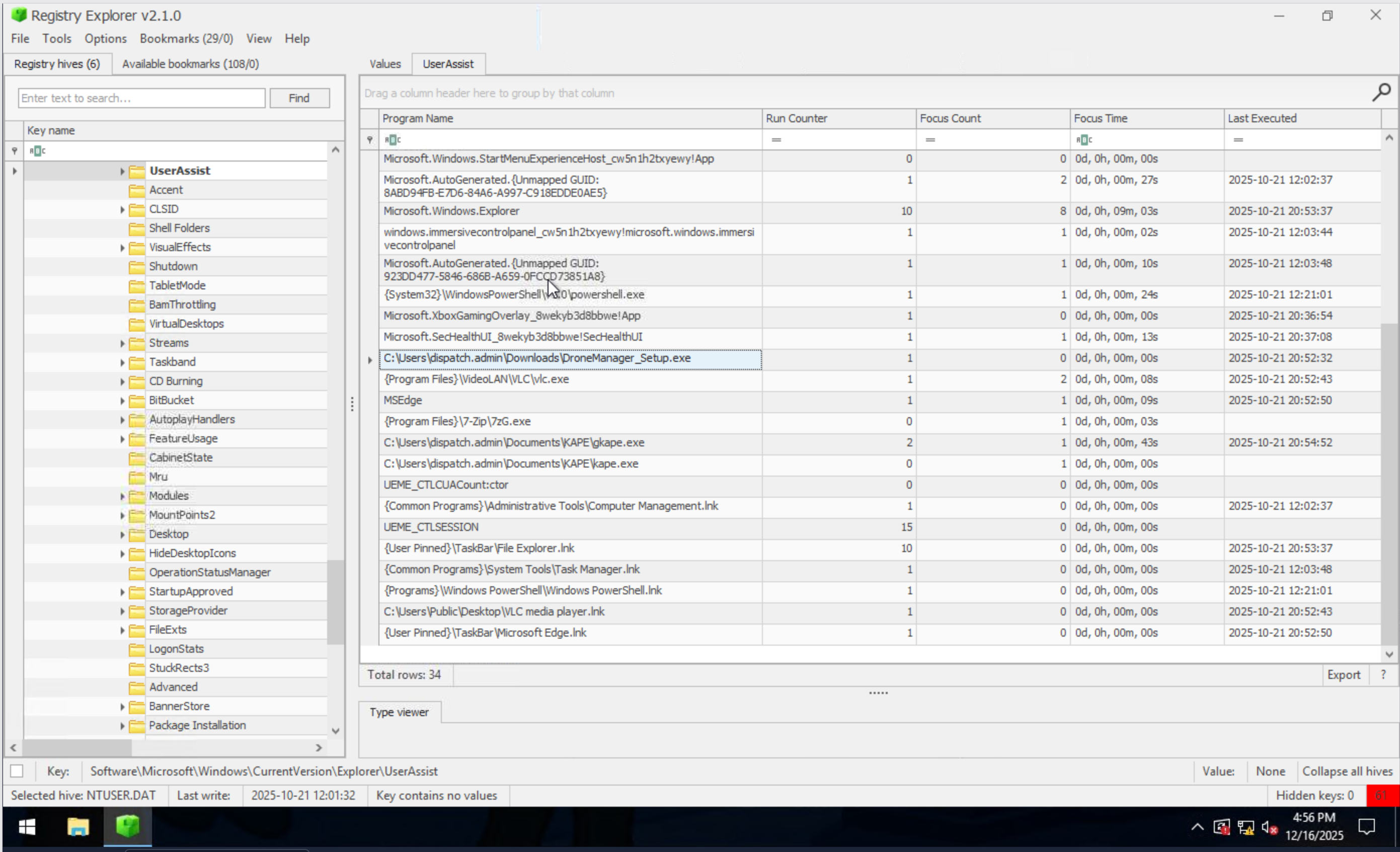
- What is the full path where the user launched the application (found in question 1) from?
- At first I checked
HKCU\Software\Microsoft\Windows\CurrentVersion\Explorer\RecentDocsto see if it was launched from there. It was not. - Then I checked
HKCU\Software\Microsoft\Windows\CurrentVersion\Explorer\UserAssistThat is where it was launched from. 
- At first I checked
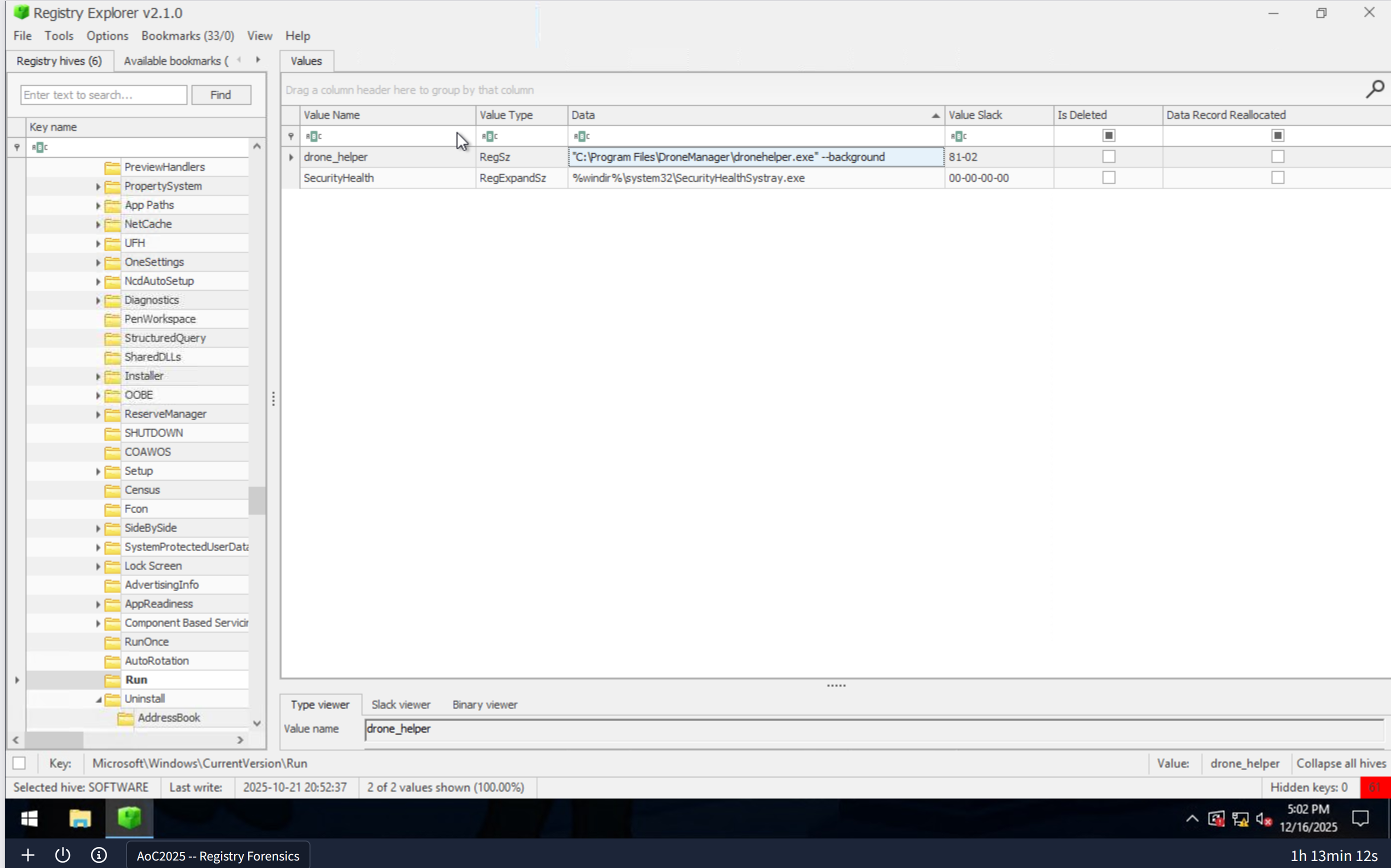
- Which value was added by the application to maintain persistence on startup?
- The start up keys are at
HKLM\Software\Microsoft\Windows\CurrentVersion\Run 
- The start up keys are at
Lessons Learned
-
- Registry Forensics as a Detection Method: The Windows Registry is a rich source of forensic evidence, containing timestamps and execution paths that reveal when and how malicious applications were introduced to a system. By systematically examining key registry locations like
Uninstall,UserAssist, andRun, investigators can reconstruct the exact timeline and methods of compromise.
- Registry Forensics as a Detection Method: The Windows Registry is a rich source of forensic evidence, containing timestamps and execution paths that reveal when and how malicious applications were introduced to a system. By systematically examining key registry locations like
-
Persistence Mechanisms and Registry Startup Keys: Attackers leverage registry startup keys (
HKLM\Software\Microsoft\Windows\CurrentVersion\Run) to maintain persistence, ensuring their malware survives system reboots. Identifying these persistence values is critical for both incident response and system hardening, allowing defenders to remove malicious entries and prevent reinfection.